

 4.4
4.4 










Free Canva presentation template
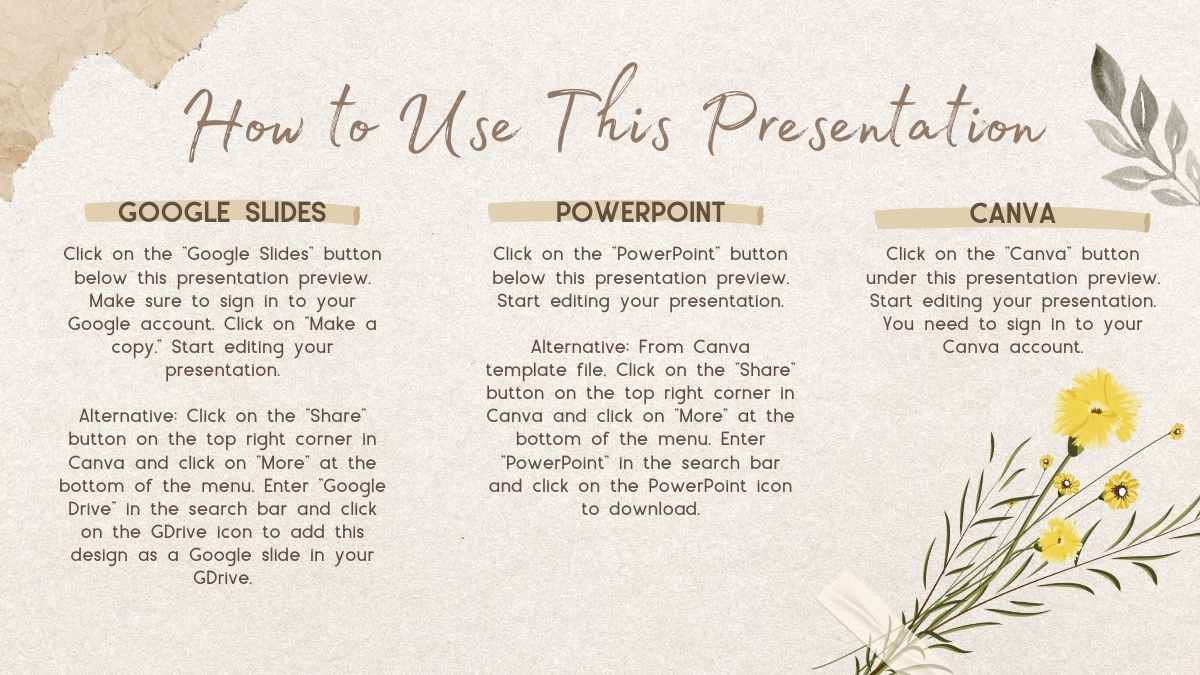
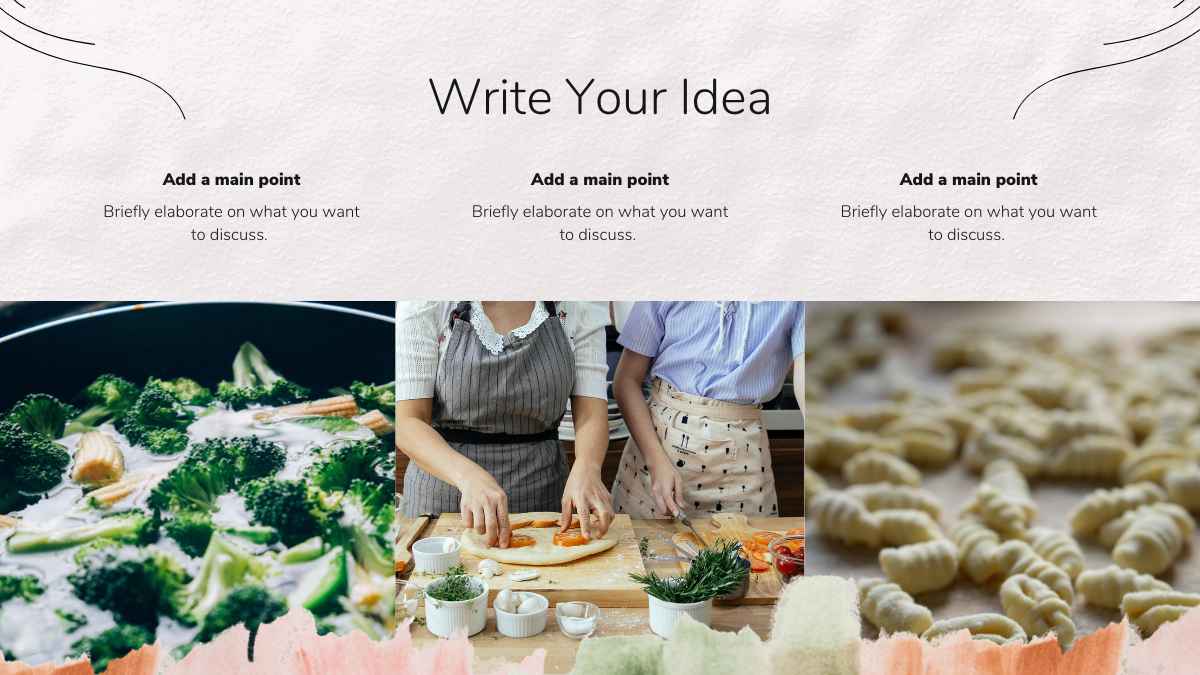
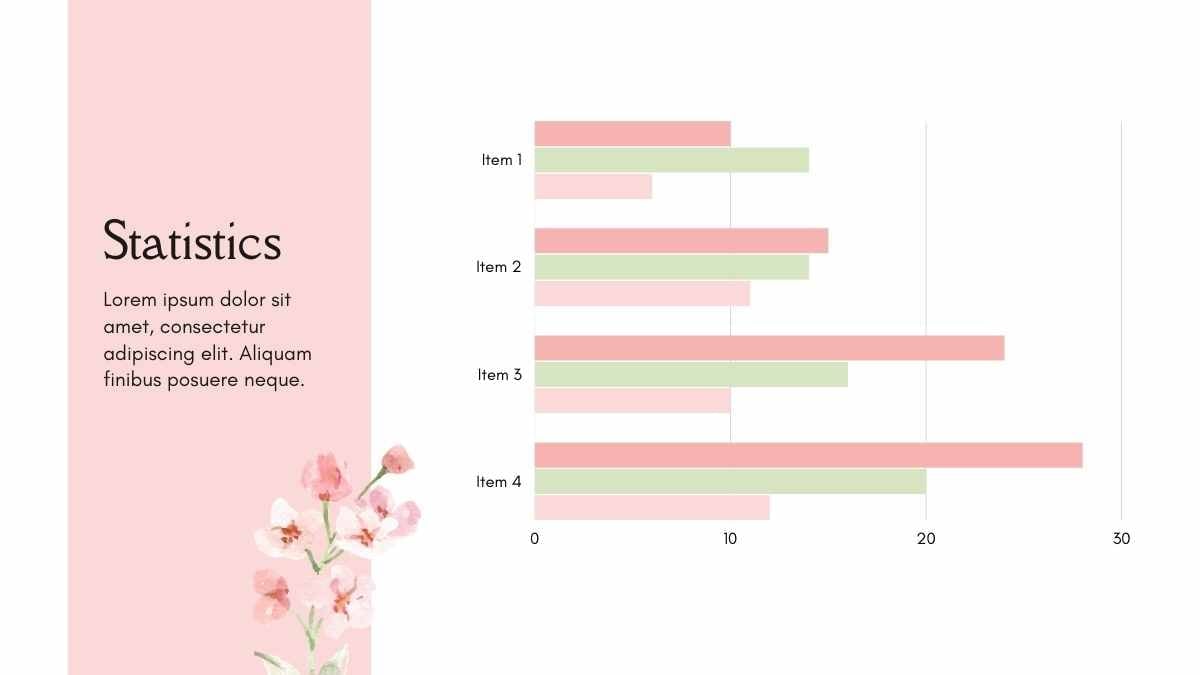
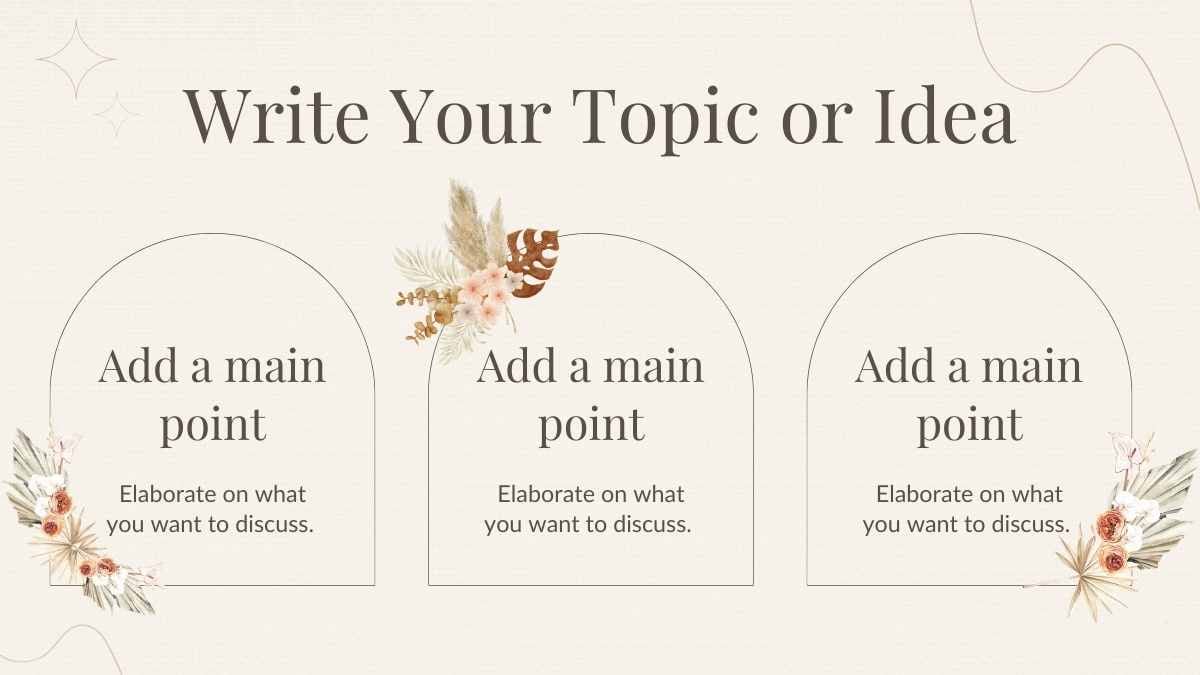
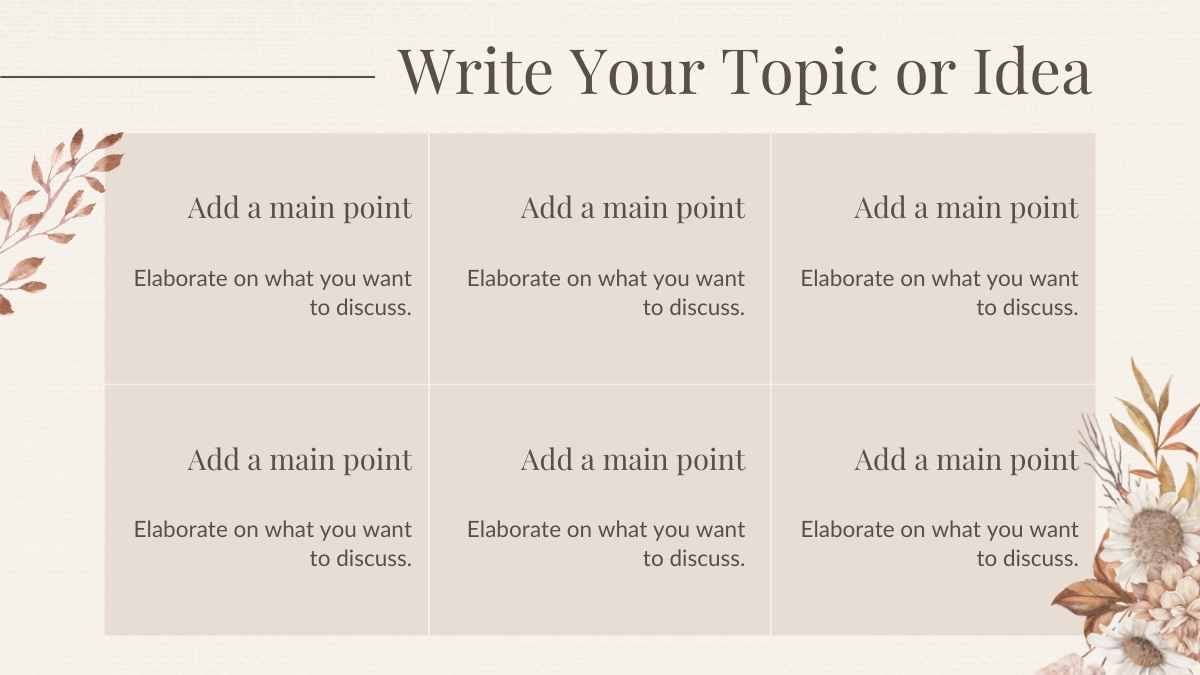
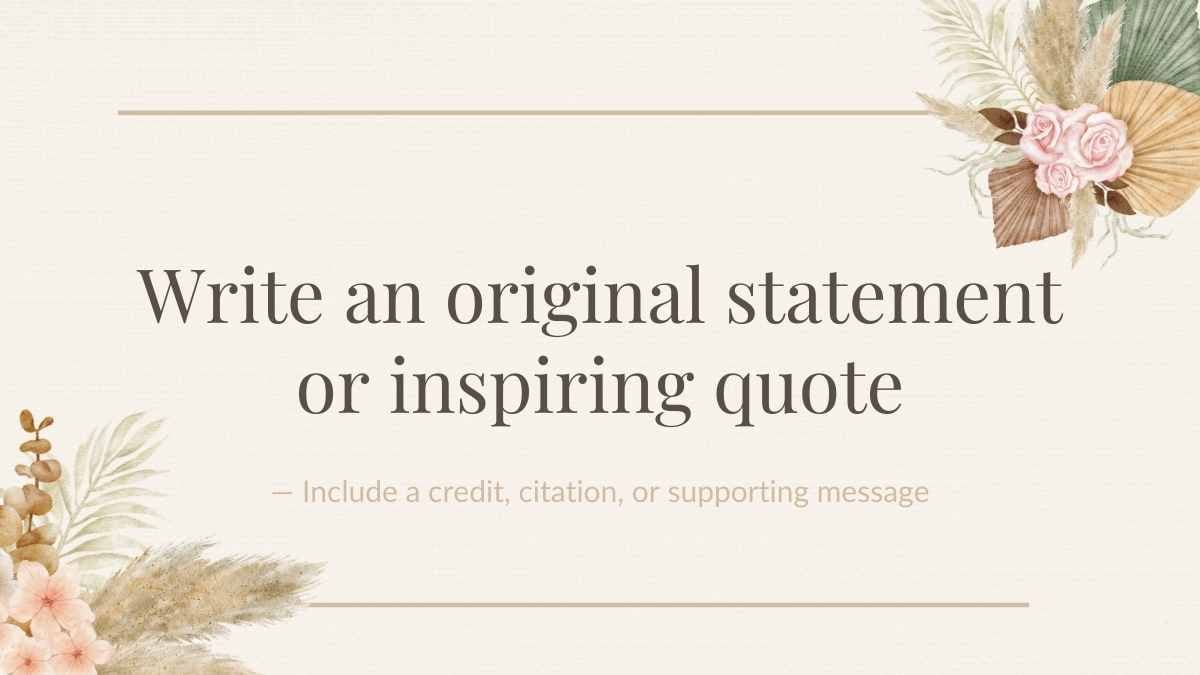
Tie the knot in style with these professionally designed, fully customizable floral wedding slides. Perfect as a Google Slides theme, PowerPoint template, or Canva theme, this template gives you all the creative freedom you need to plan and celebrate your way. Whether you’re making an invitation or presentation, you can personalize each slide with icons, images, illustrations, and other graphics. Easily upload photos and experiment with color schemes and font combinations. Refer to the Icons and Elements resource page for extra inspiration. Check out the handy “How To” slide at the start of the deck to learn how to use these slides as a Google Slides theme, PowerPoint template, or Canva theme.
Features of this template
- Fully customizable, professional slides
- Inspiring layouts and color schemes
- Easy-to-use timelines, charts and graphs
- Quick to download as a PDF or JPG
- A library of elegant icons and elements
- Collaboration and sharing features
- Videos and soundtracks to add dimension
- Millions of stunning photos, illustrations and fonts
- Simple drag-and-drop tool for all graphics
- Pre-recorded Talking Presentations to save you time
This template is set in the fonts Lato and Playfair display, and features the color brown.
FAQs
Is this template exclusive to Canva?
This template is exclusive to Canva, with some features designed to work best in Canva’s intuitive editor. But don’t worry—once you open it in Canva, you can still export it to PowerPoint or Google Slides in just a few clicks.
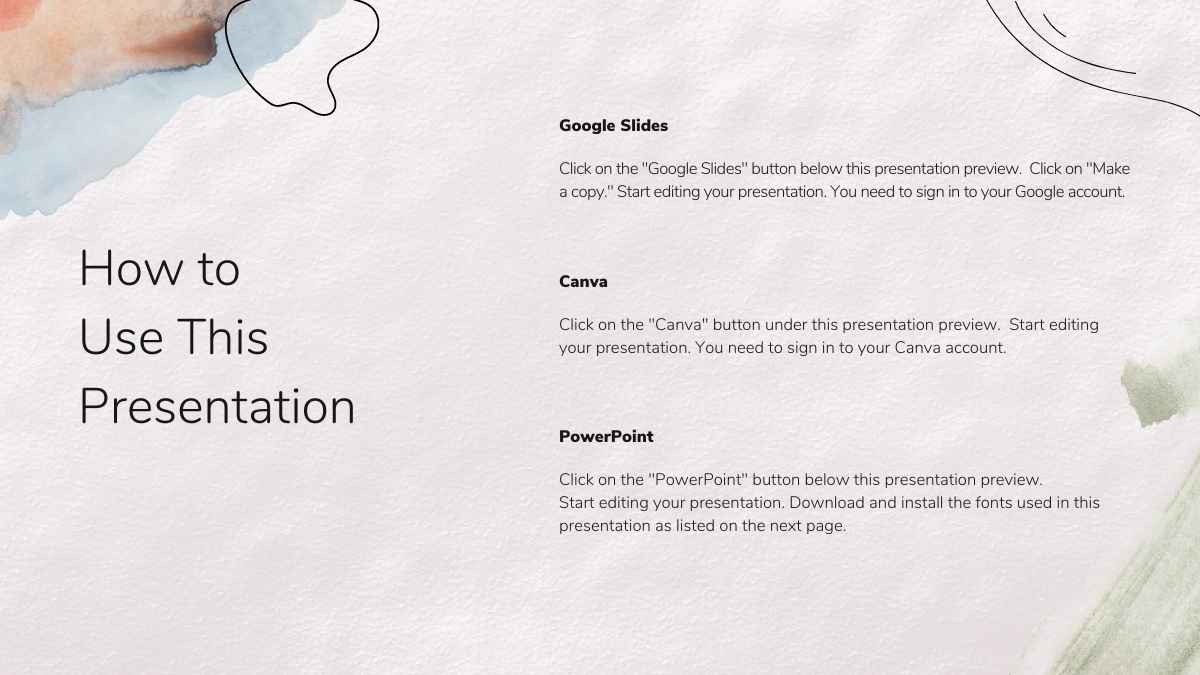
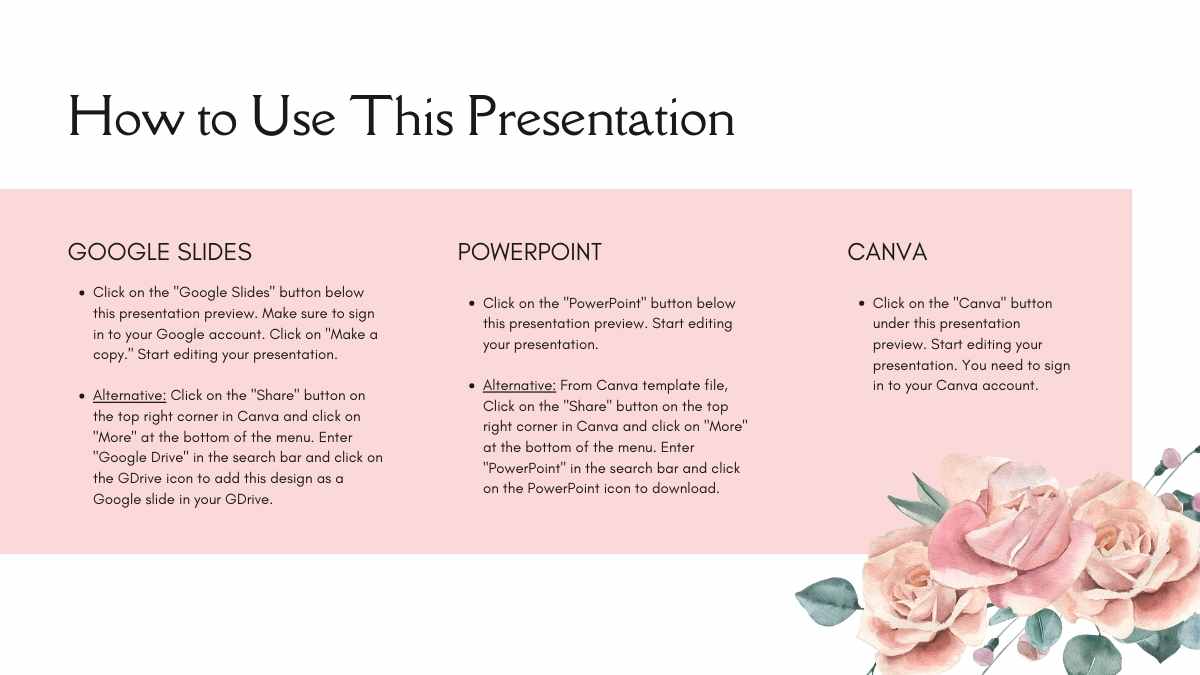
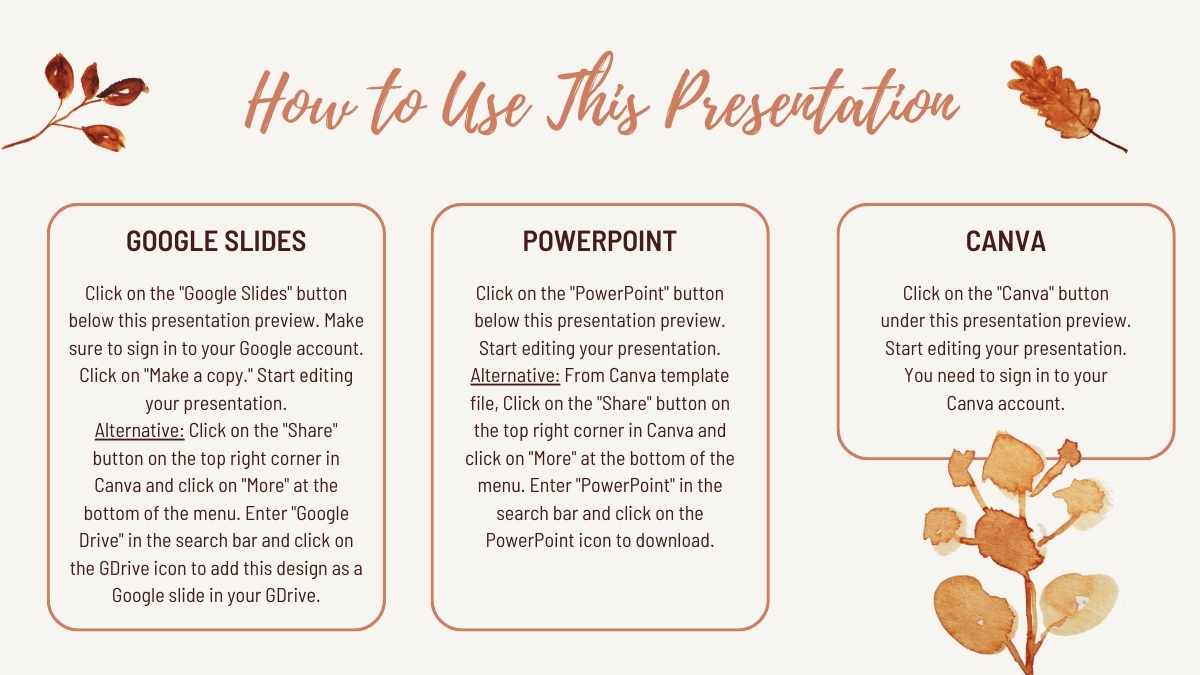
For PowerPoint, click the greyed out PowerPoint button then “Download as PowerPoint”. You should then be able to view the template in the Canva editor. After doing so, go to “Share” → “See all” → search for “PowerPoint” → click the PPT icon to download a PPTX file.
For Google Slides, click the greyed out Google Slides button then “Get this as Google Slides”. You should then be able to view the template in the Canva editor. After doing so, go to “Share” → “See all” → search for “Google Drive” → click the Google Drive icon to save an editable copy to your Drive.

















 15
15