

 4
4 








Free Canva presentation template
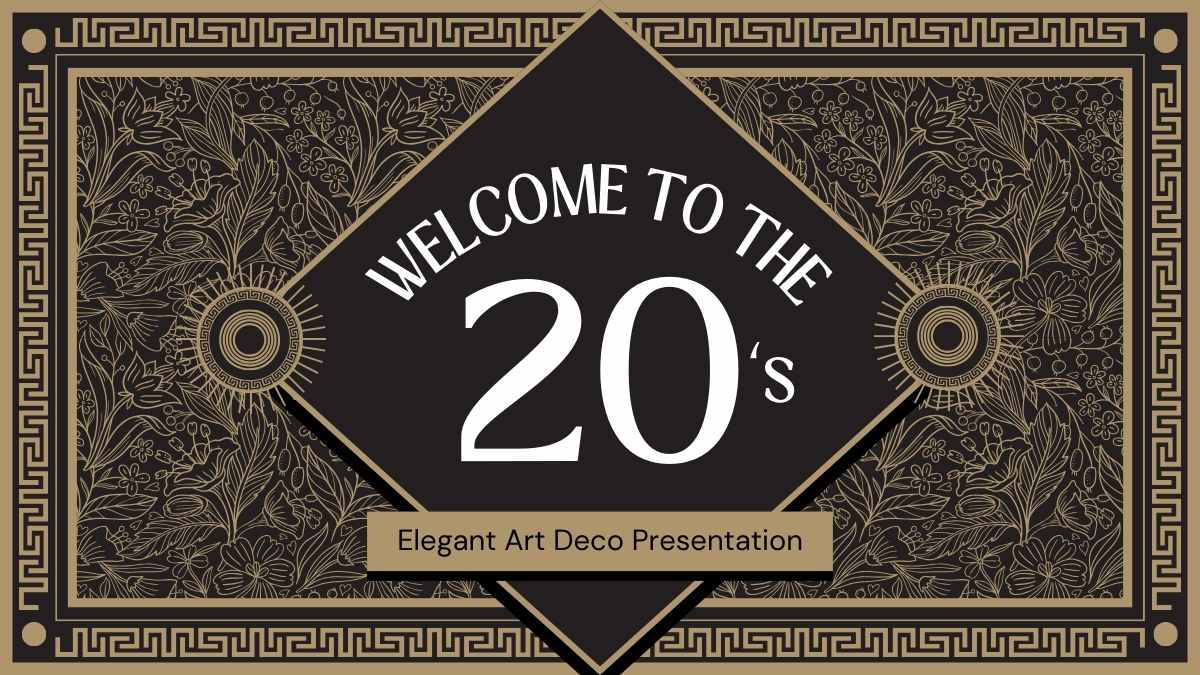
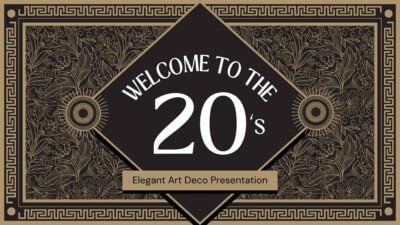
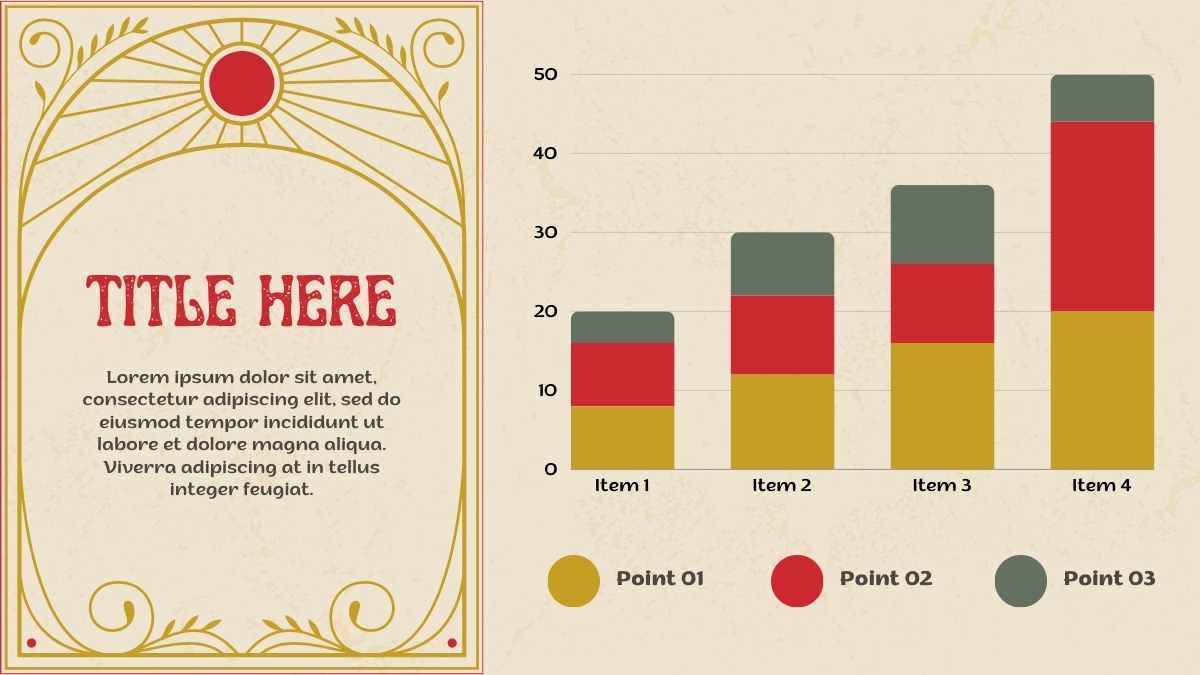
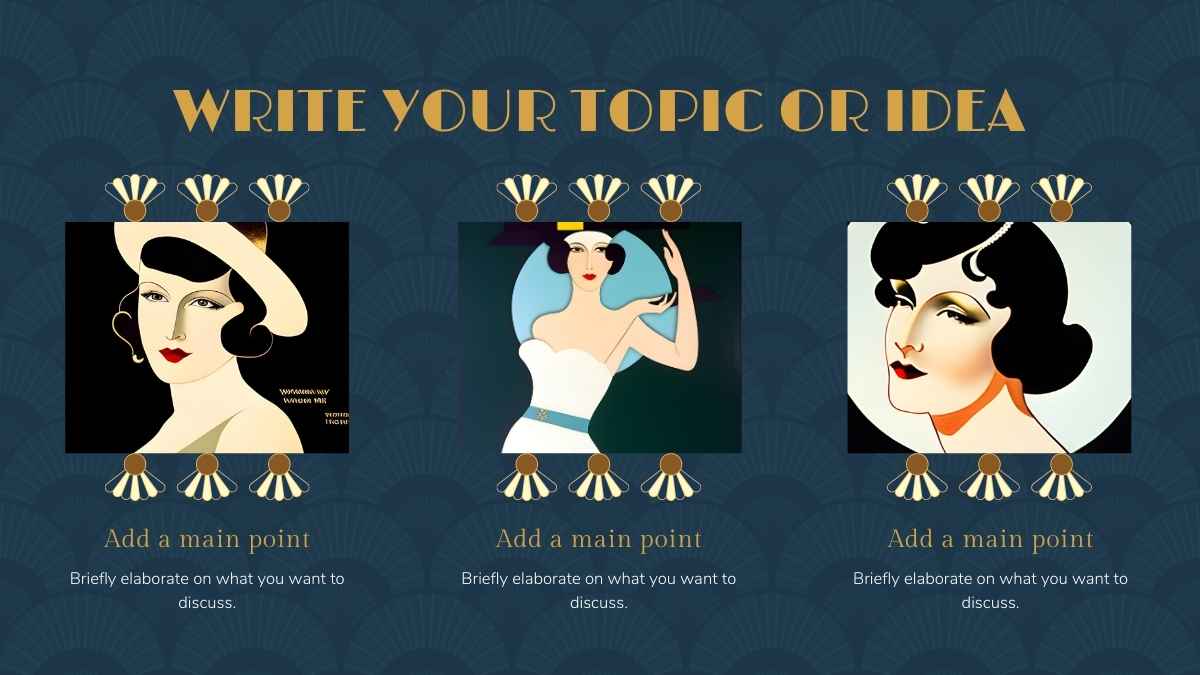
Introducing our stunning Art Deco inspired educational presentation template featuring elegant gold and blue colors. Designed for educators seeking a sophisticated and vintage touch in their lessons, this PowerPoint and Google Slides template captivates students with its bold deco architecture lines and interactive elements. Perfect for captivating your audience during a lecture or creating an engaging lesson plan, this elegant template adds a touch of finesse to your educational content. Experience the timeless charm of Art Deco and transform your presentations today with this sophisticated and versatile template.
Features of this template
- 25+ ready-made slides to customize to your heart’s content
- Hundreds of charts, frames, lines and shapes to choose from
- Handy animation and transition features for each slide
- Easy downloading or sharing in a wide range of formats
With Canva, you get even more creative freedom:
- An easy drag-and-drop tool to help you add graphics
- Page animation features, emojis, color palettes and font sets
- Millions of professionally designed images and photos
- Pre-recorded Talking Presentation tools to help you practice
- A notes feature for adding talking points to your design
- Searchable videos, soundtracks and other audio clips
- Easy collaboration with friends, coworkers and family
This template is set in the fonts Limelight and Nunito, and features the color gold.
FAQs
Is this template exclusive to Canva?
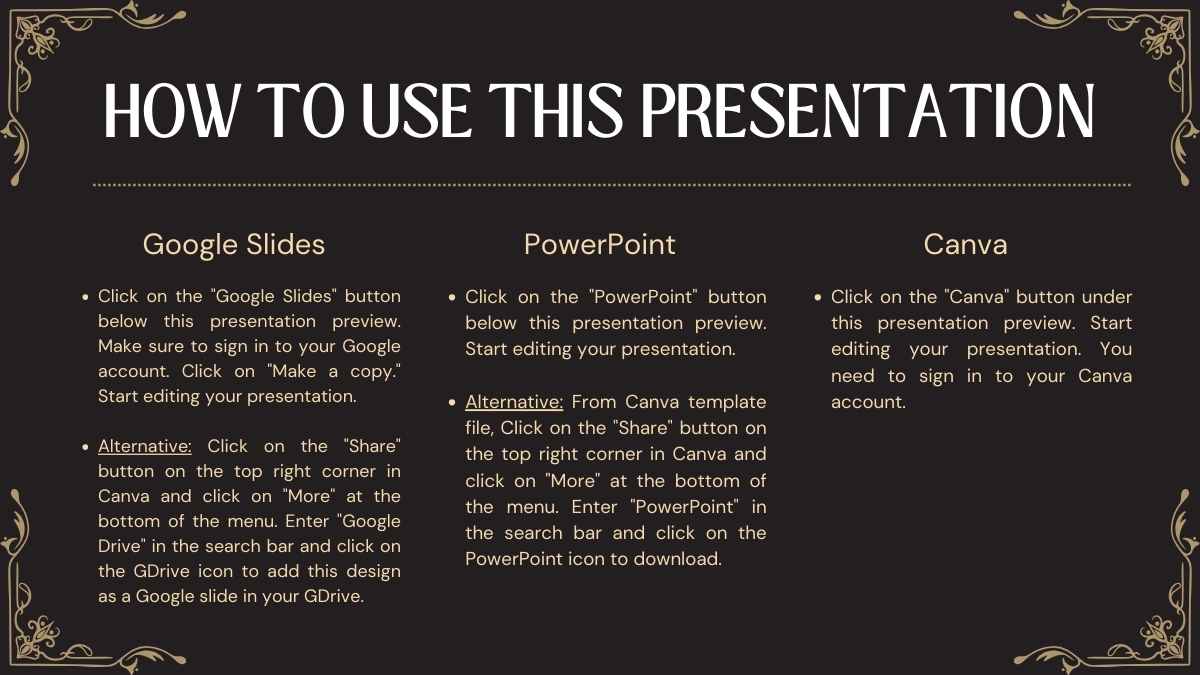
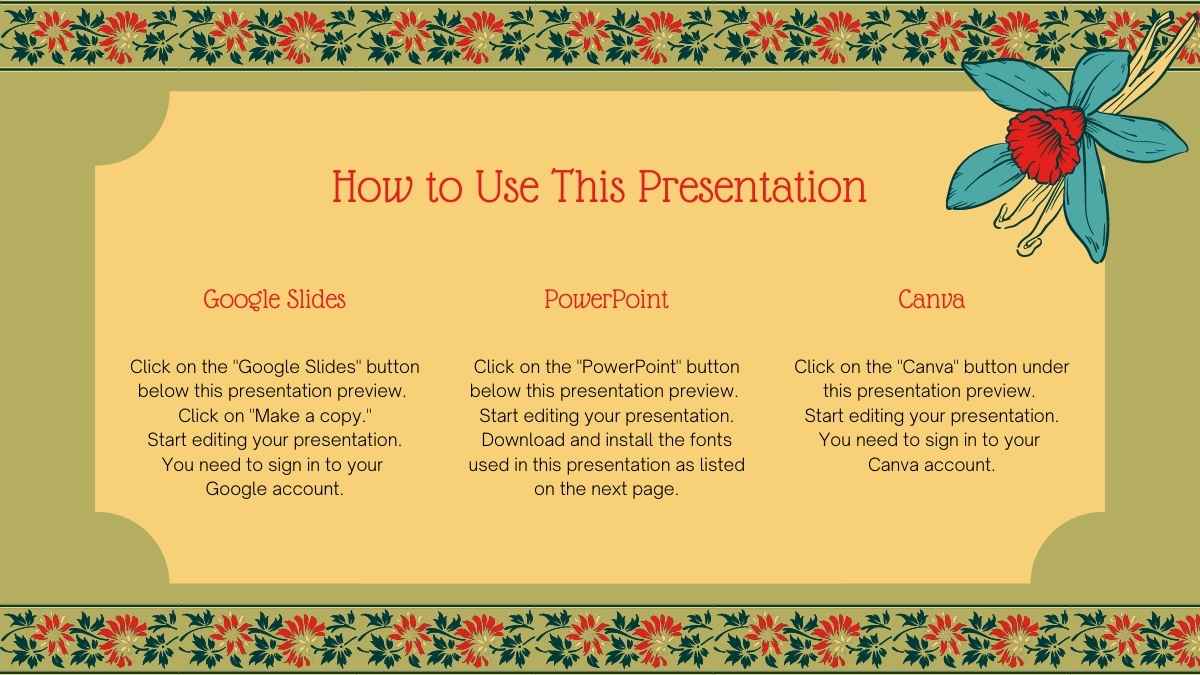
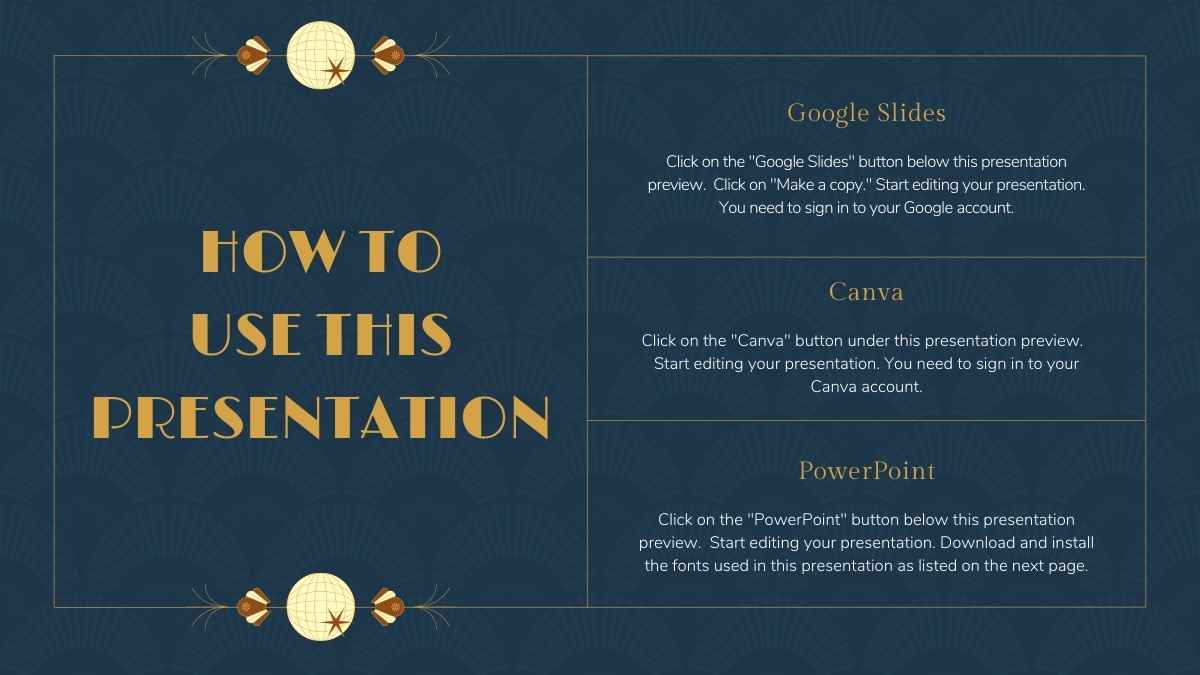
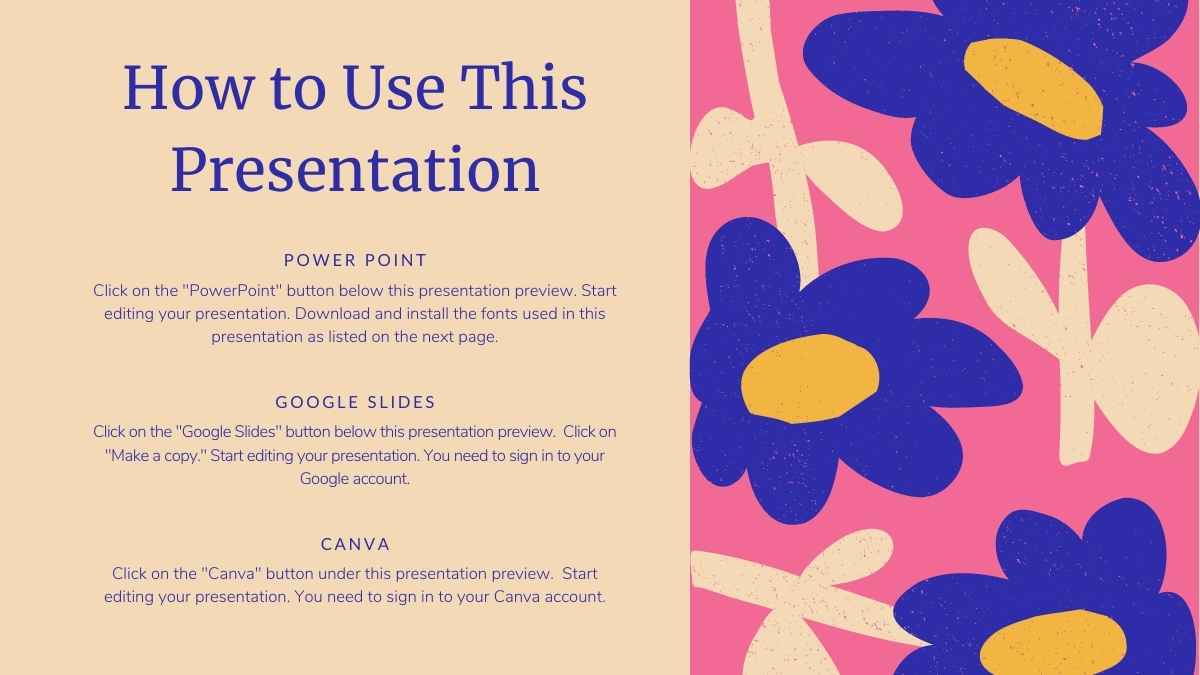
This template is exclusive to Canva, with some features designed to work best in Canva’s intuitive editor. But don’t worry—once you open it in Canva, you can still export it to PowerPoint or Google Slides in just a few clicks.
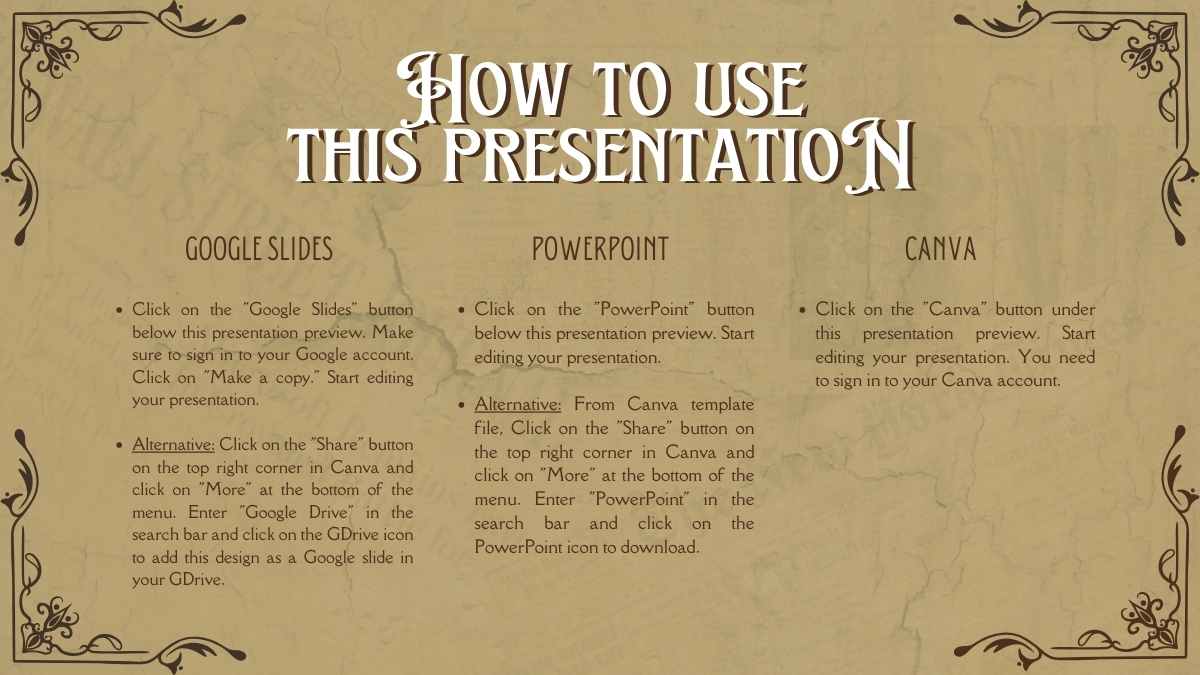
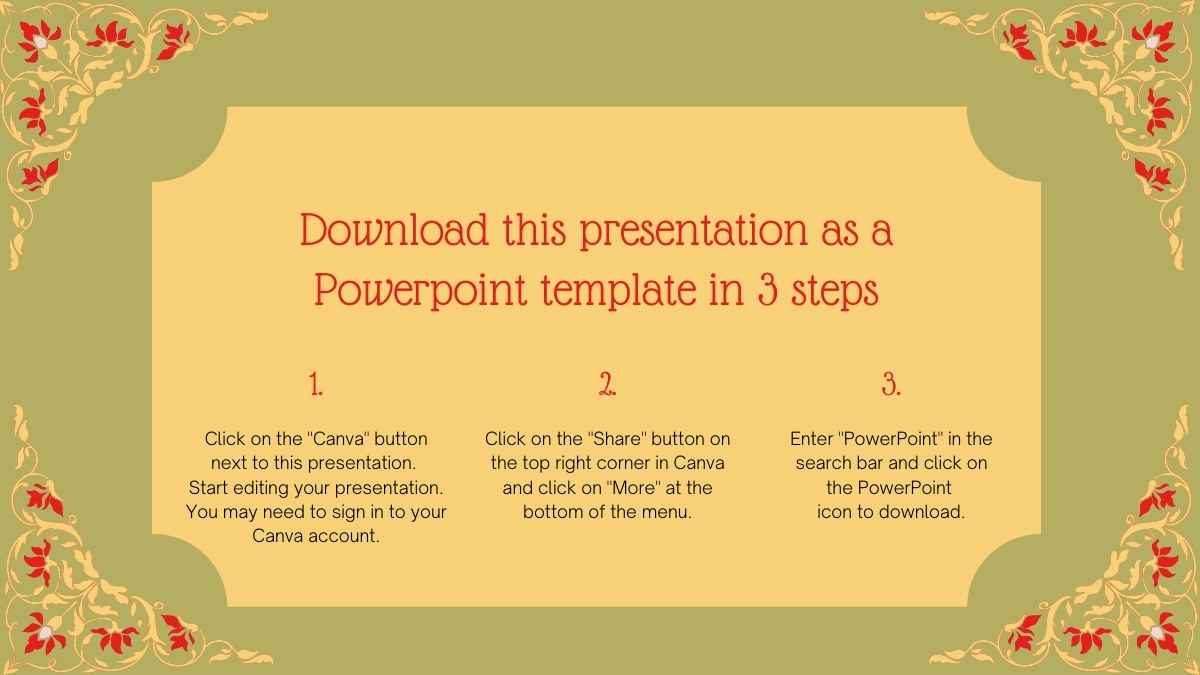
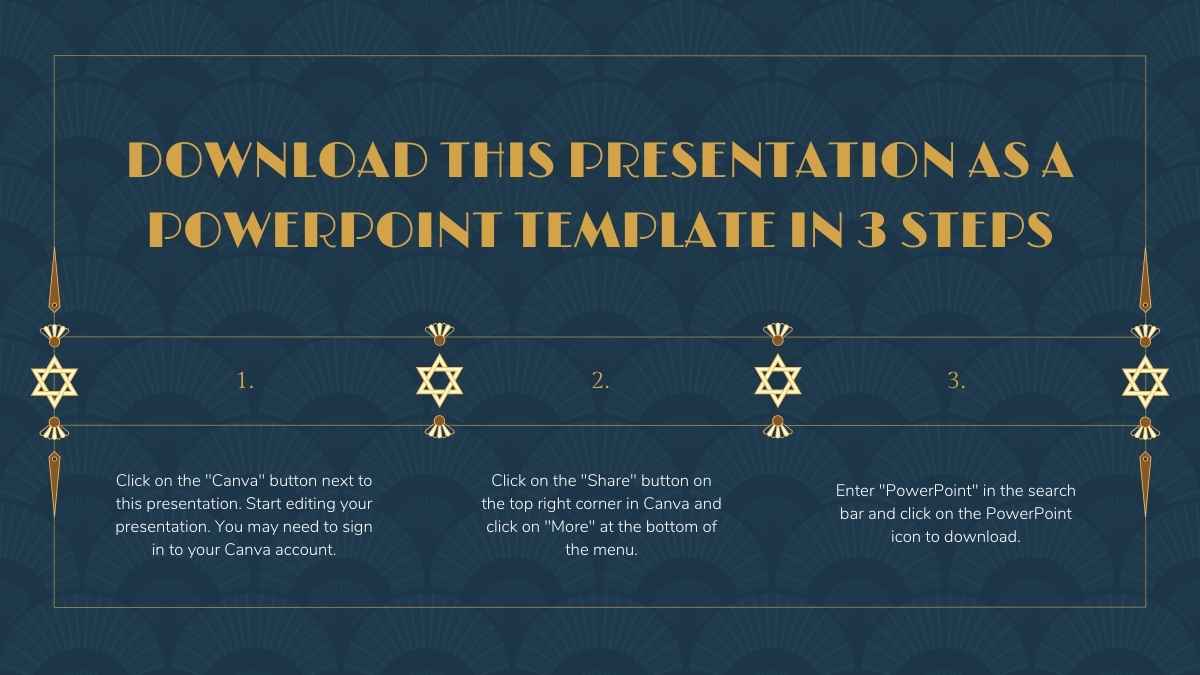
For PowerPoint, click the greyed out PowerPoint button then “Download as PowerPoint”. You should then be able to view the template in the Canva editor. After doing so, go to “Share” → “See all” → search for “PowerPoint” → click the PPT icon to download a PPTX file.
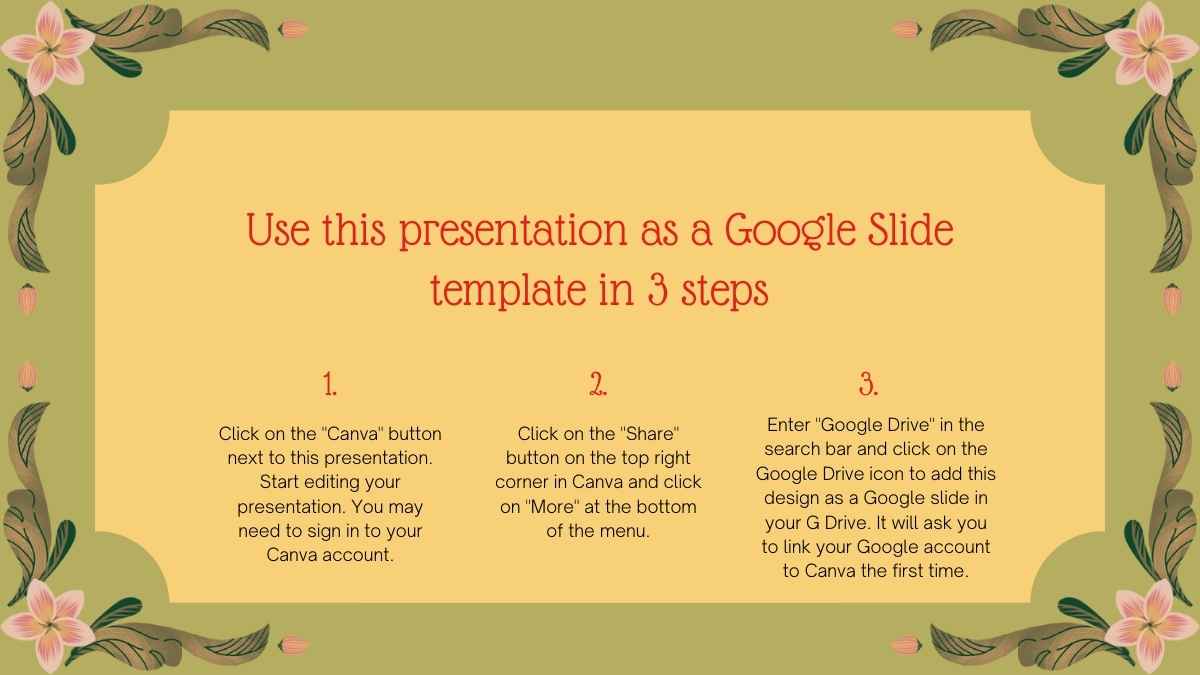
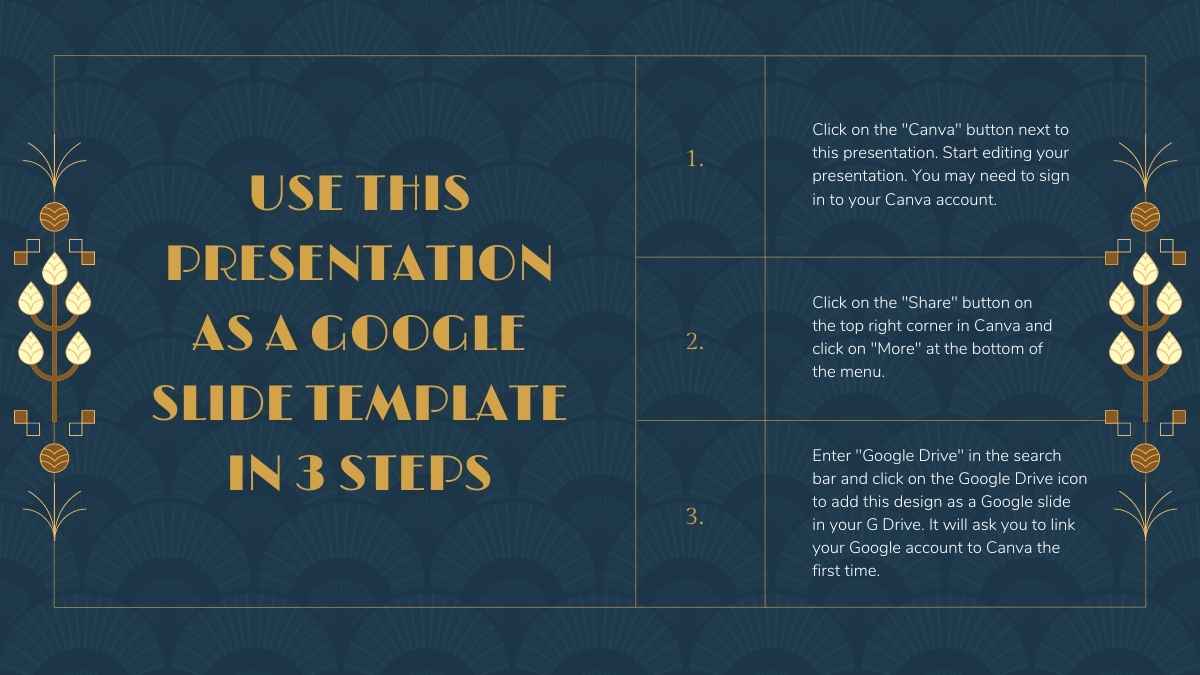
For Google Slides, click the greyed out Google Slides button then “Get this as Google Slides”. You should then be able to view the template in the Canva editor. After doing so, go to “Share” → “See all” → search for “Google Drive” → click the Google Drive icon to save an editable copy to your Drive.











 15
15