

 3.5
3.5 
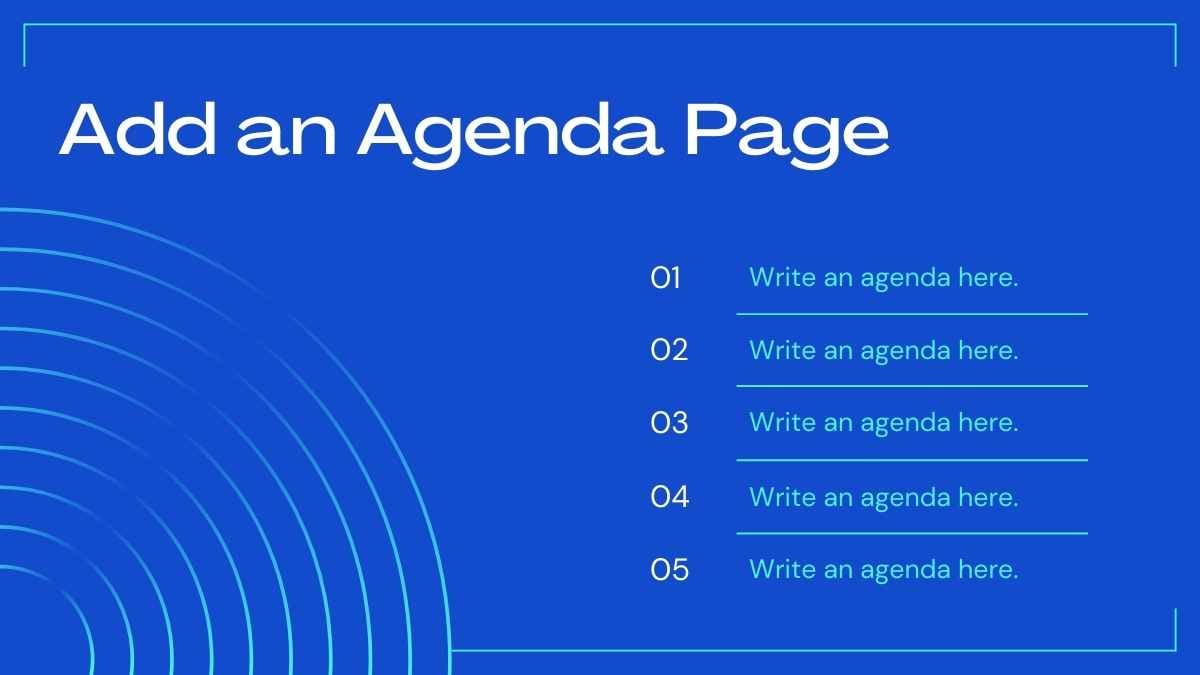
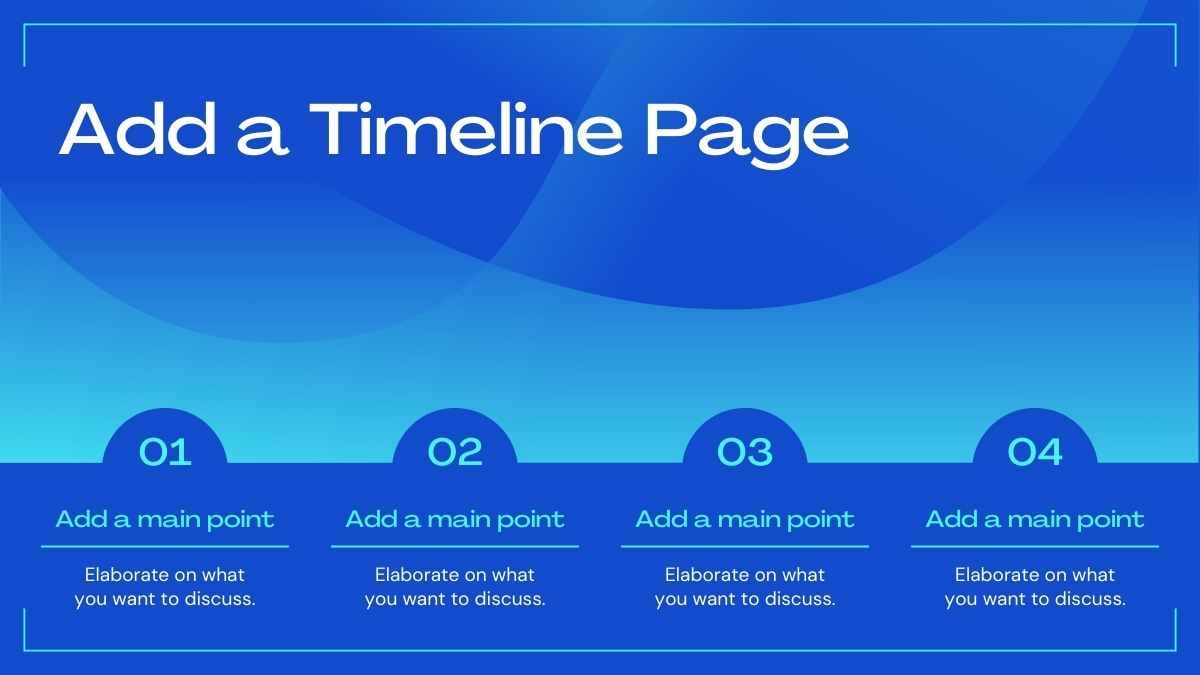
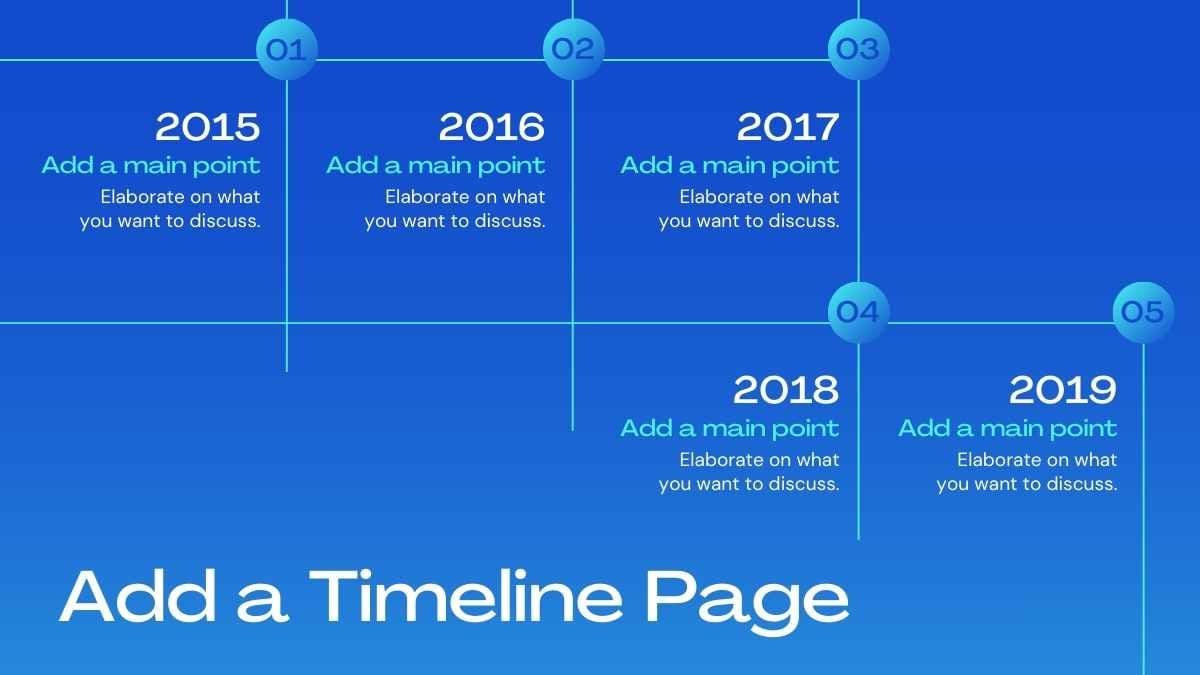





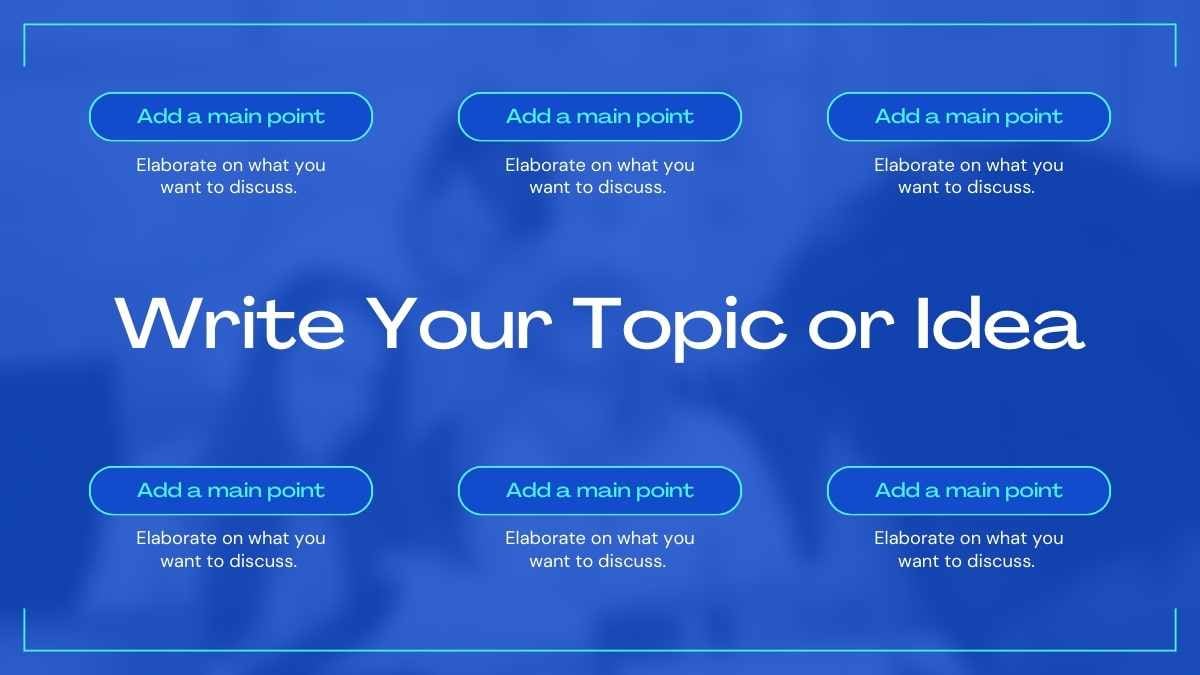



Free Canva presentation template
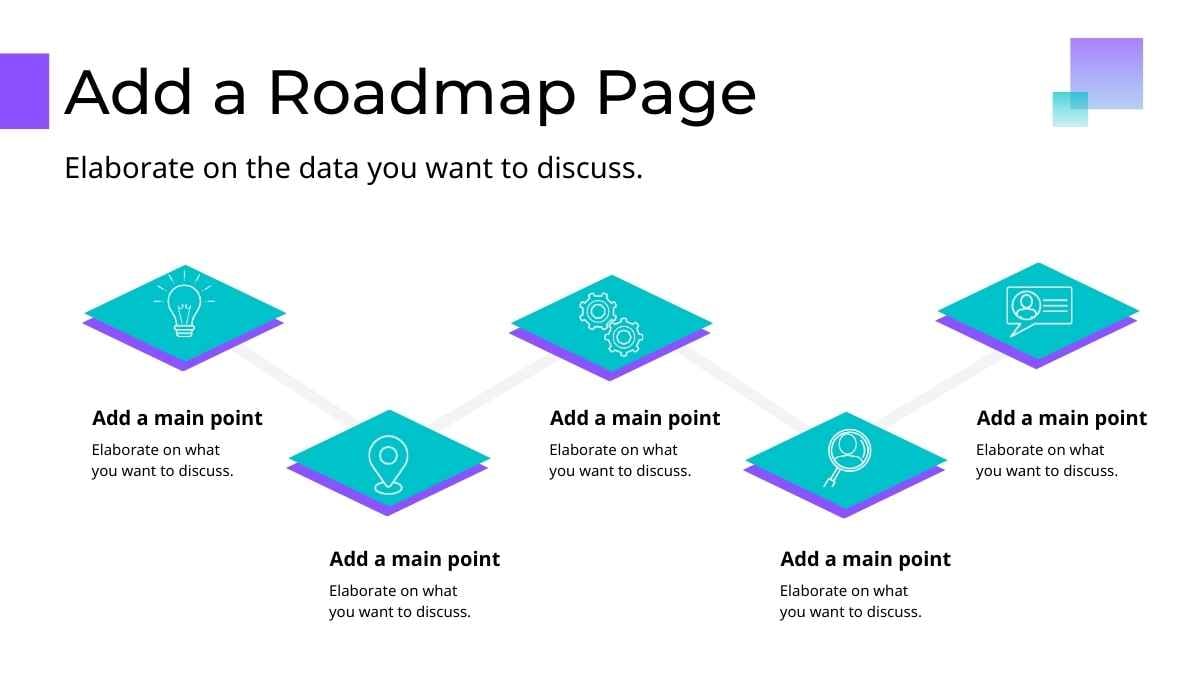
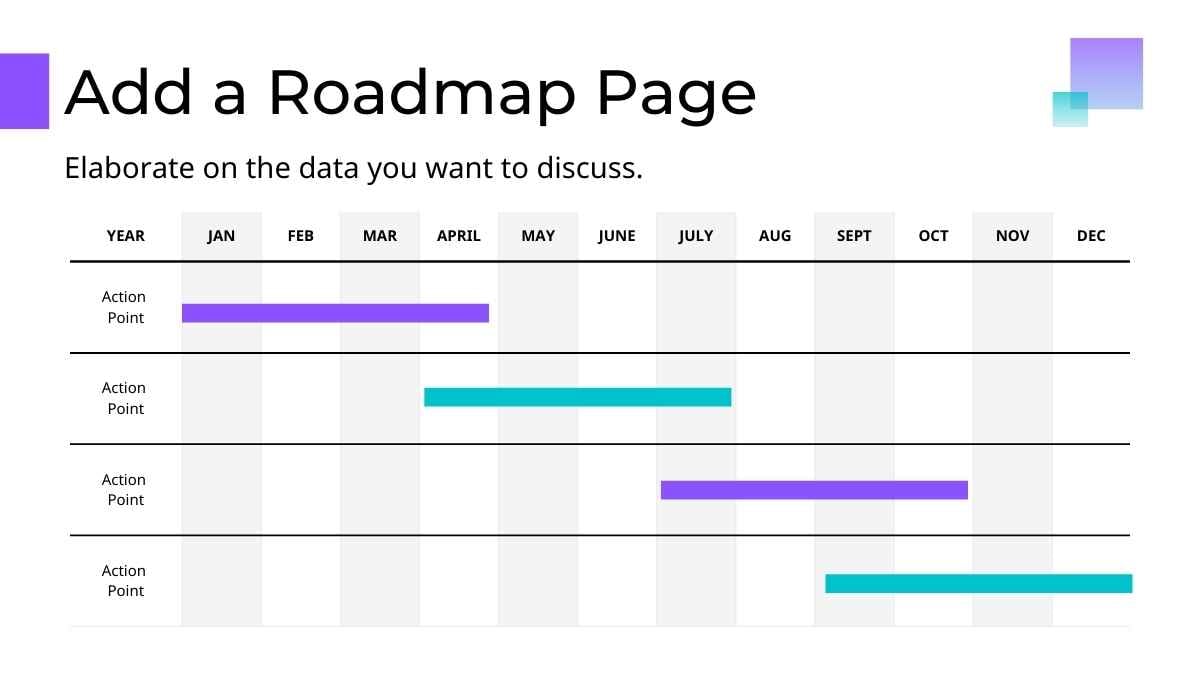
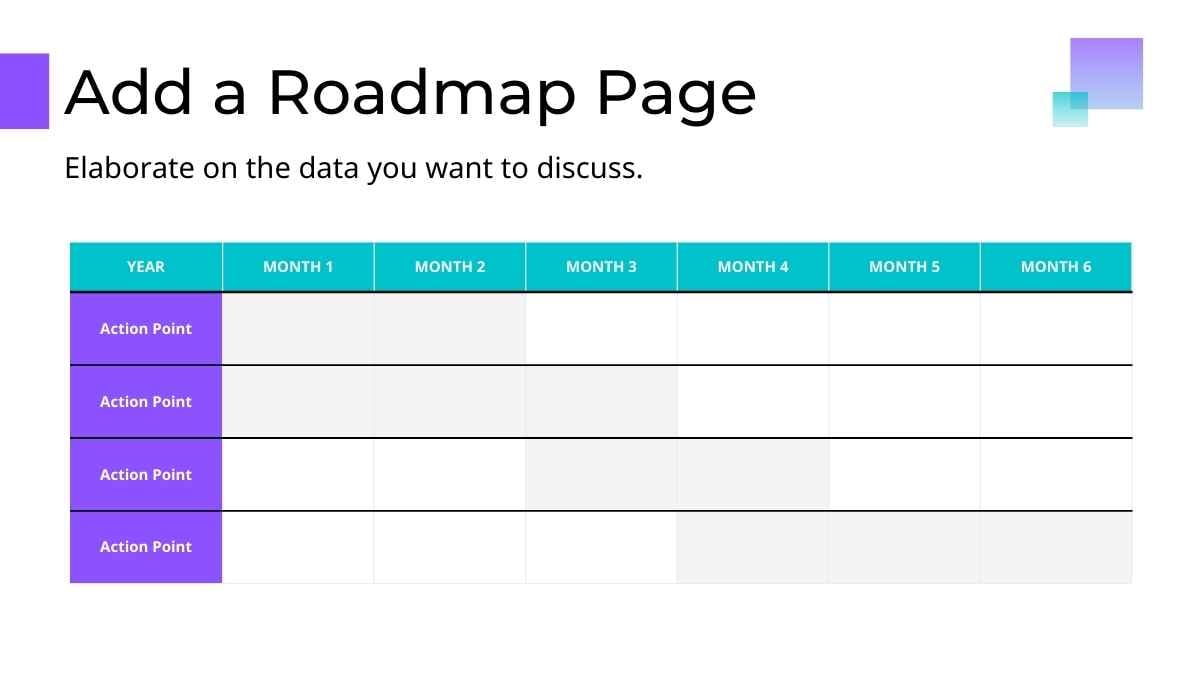
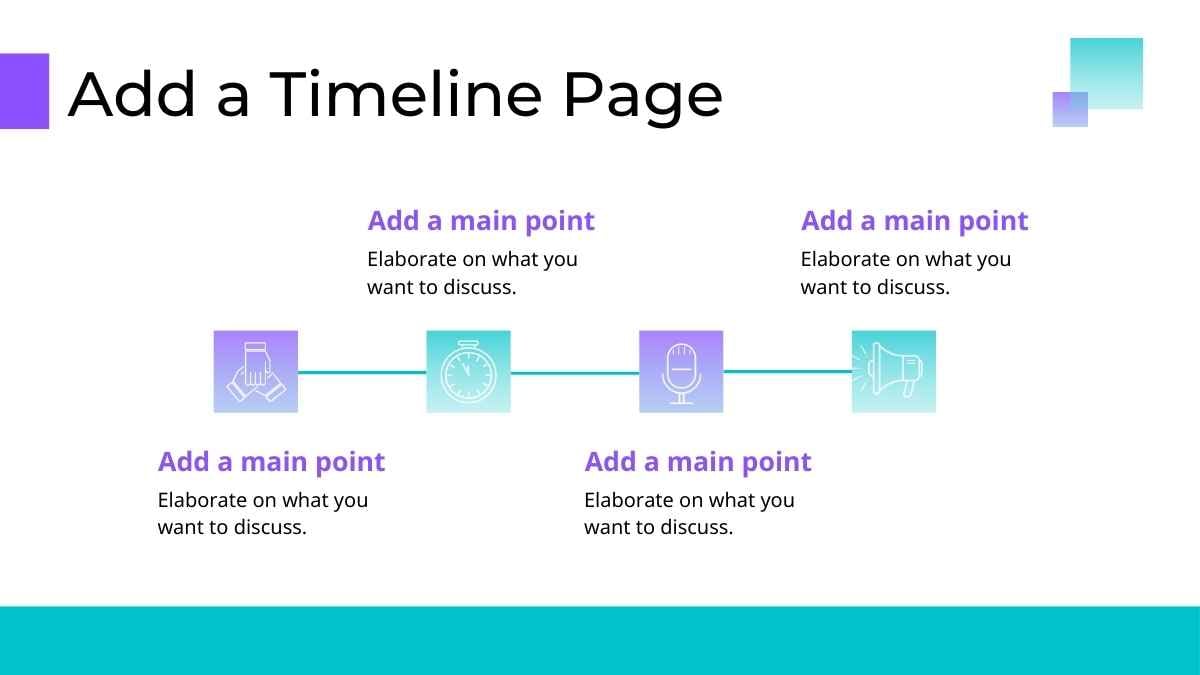
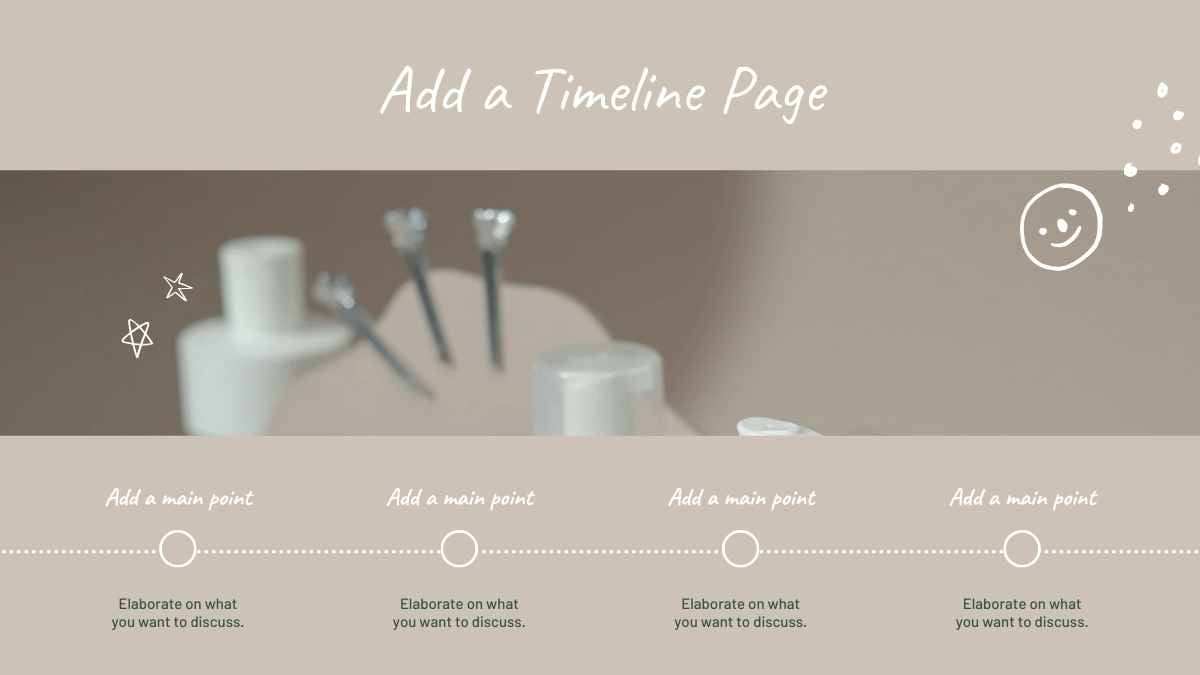
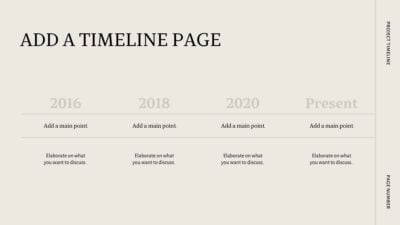
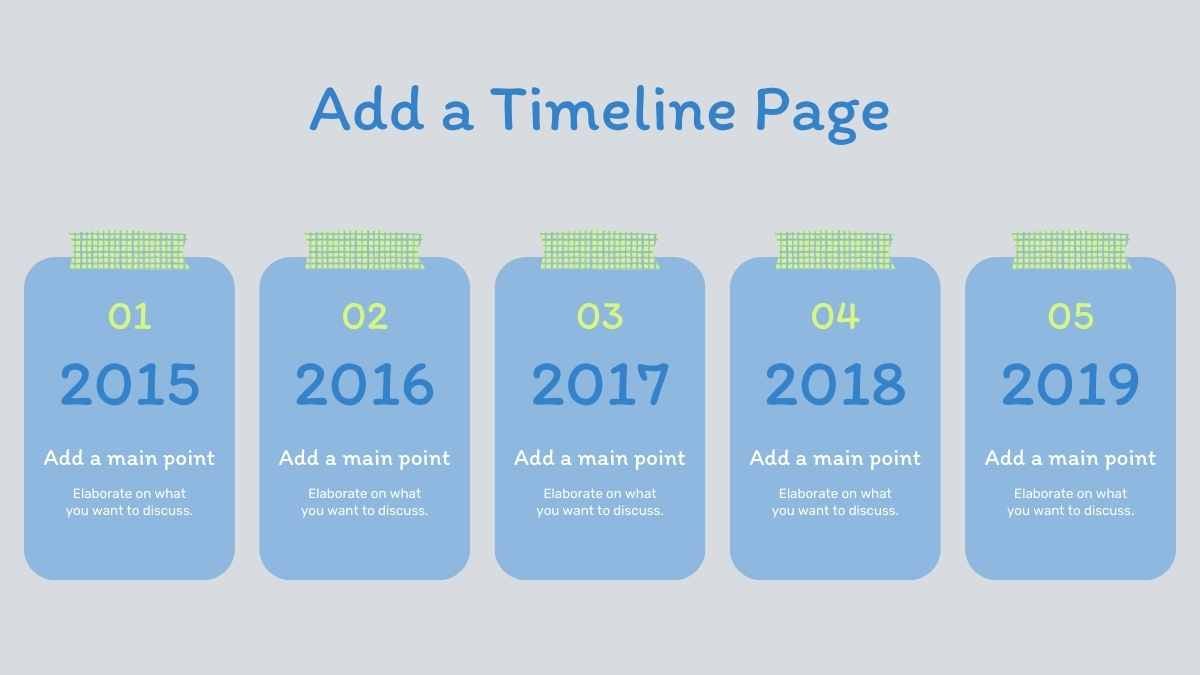
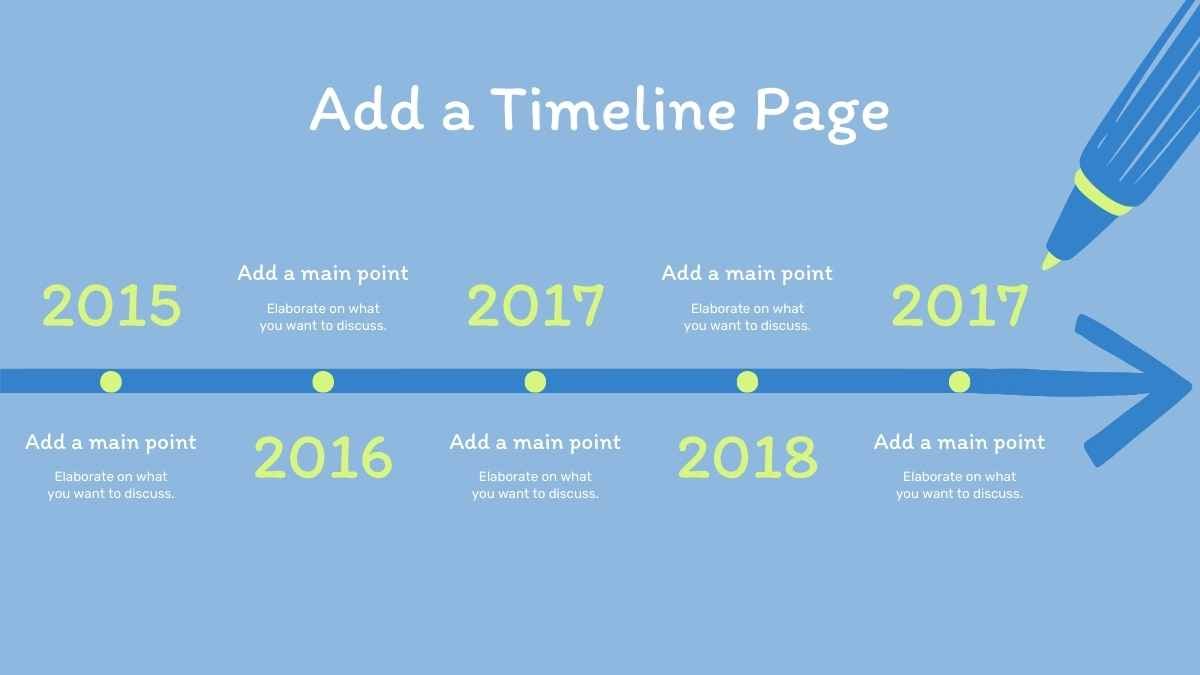
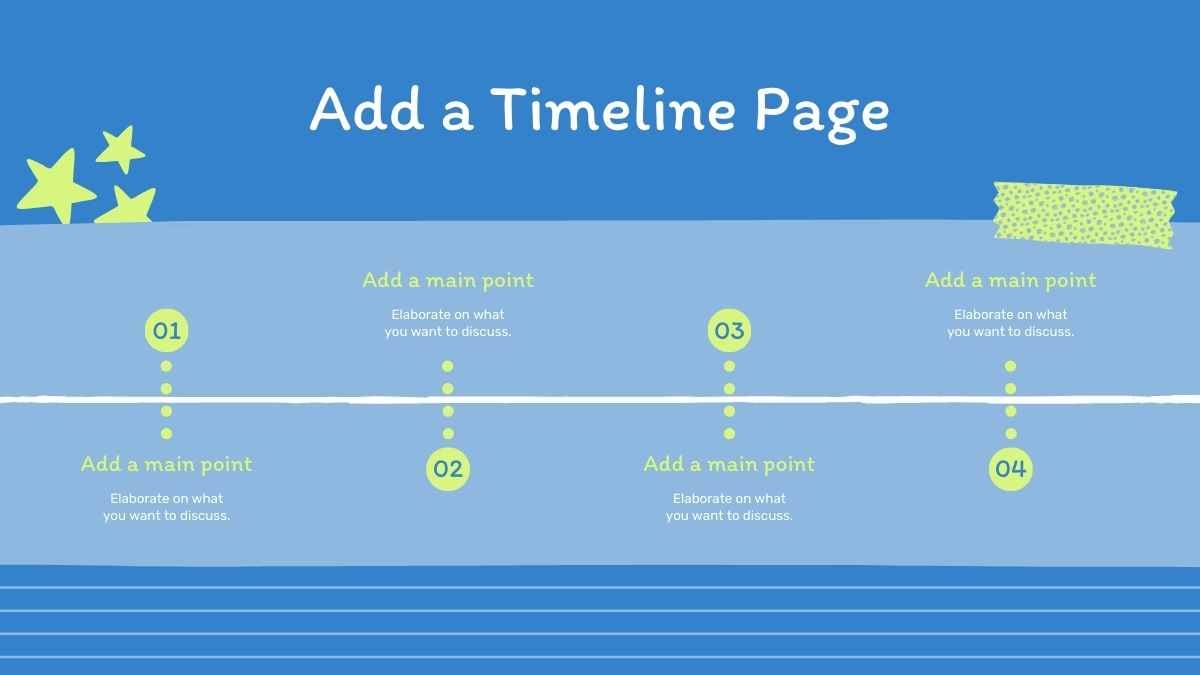
hare your company’s journey with a company timeline, easy to use as a Google Slides template, PowerPoint theme, or Canva template. Whether you’re celebrating past achievements or charting the way forward, these slides let you share it all in one place. Fill in dates, add important milestones, and describe the highlights. Easily apply your company logo and colors. Customize your timeline with icons, illustrations, elements, and other graphics. Drawn inspiration from the Icons and Elements resource page. Check out the handy “How To” slide at the start of the deck to learn how to use these slides as a Google Slides template, PowerPoint theme, or Canva template.
Features of this template
- 25+ stunning slides designed by professionals
- Sample layouts to get your creative juices flowing
- Collaboration features so you can design with others
- Videos and soundtracks for multi-media appeal
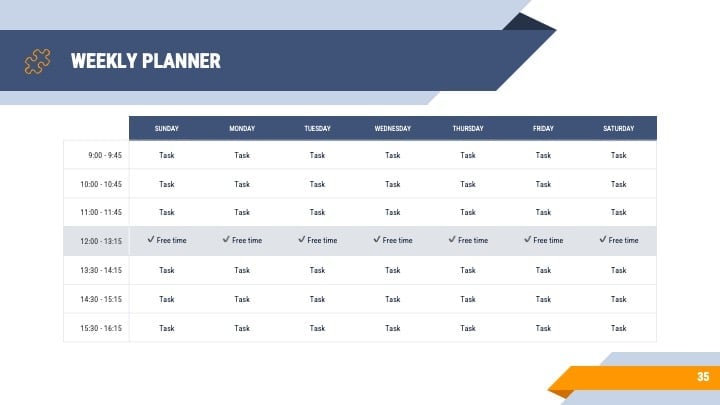
- Slides for creating schedules and guest lists
- Simple to share or download as a PDF or JPG
- A library of designer-curated elements and icons
- Millions of high-quality photos, illustrations and fonts
- A handy drag-and-drop tool for elements and graphics
- Pre-recorded Talking Presentations for easy prep
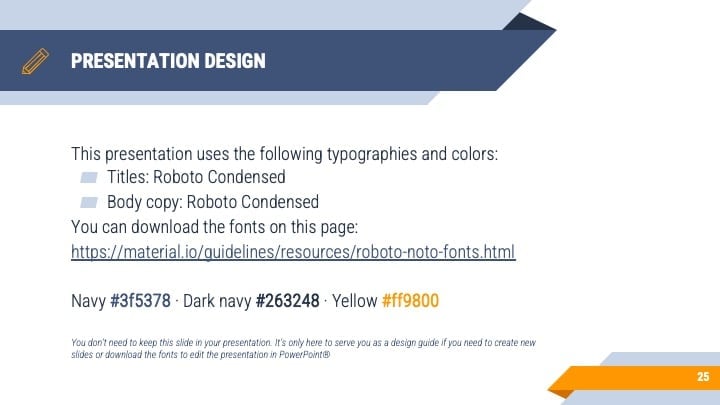
This template is set in one font, Dm sans, and uses a palette of blue and grey.
FAQs
Is this template exclusive to Canva?
This template is exclusive to Canva, with some features designed to work best in Canva’s intuitive editor. But don’t worry—once you open it in Canva, you can still export it to PowerPoint or Google Slides in just a few clicks.
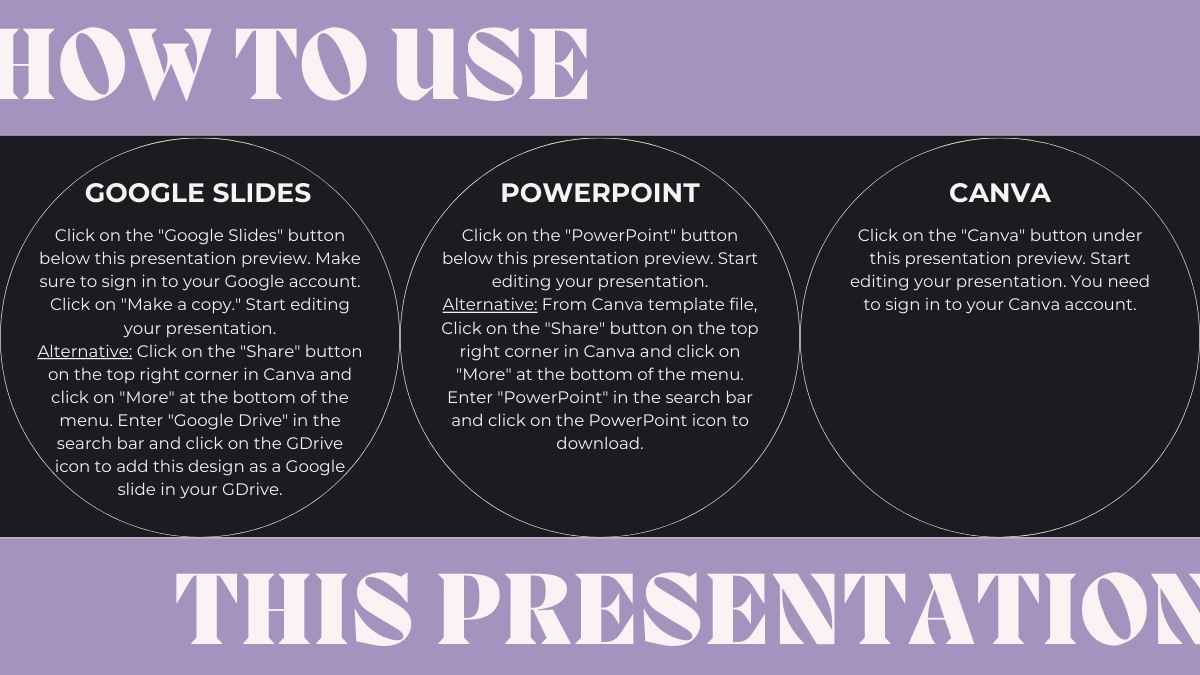
For PowerPoint, click the greyed out PowerPoint button then “Download as PowerPoint”. You should then be able to view the template in the Canva editor. After doing so, go to “Share” → “See all” → search for “PowerPoint” → click the PPT icon to download a PPTX file.
For Google Slides, click the greyed out Google Slides button then “Get this as Google Slides”. You should then be able to view the template in the Canva editor. After doing so, go to “Share” → “See all” → search for “Google Drive” → click the Google Drive icon to save an editable copy to your Drive.















 15
15